
طريقة استخدام Web Trader

Login
Layout
The layout has 3 main sections.
The Quote Panel
The quote panel contains all of the Forex pairs, CFDs, and Metals that are available to trade. You can search for the pair you want with the search bar in the upper left hand corner of the panel. You can narrow this list down by clicking on the star next to a pair to favorite it and sort the list to show only your favorites. The option to sort by Forex , CFDs, or Metals is also available in that drop down.
You can toggle between tile and table views by clicking the corresponding icon.
The Chart Panel
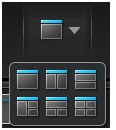
The chart panel allows you to keep track of up to four charts at a time. To add additional charts to the chart panel click on this icon directly above the charts panel and select the view you want.
If you are using multiple charts each one will have its own tool bar where you can control what pair it is showing and what time period is covering.
The top right corner to the chart has a tool bar that lets you modify your view.
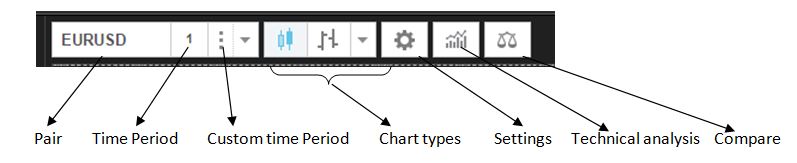
The top right corner of the chart:
To add Technical Analysis Indicators to your chart click the Indicators Icon and select the indicator you would like to add to the chart.
Each indicator has an eye icon which lets you toggle the visibility of the indicator, a gear Icon that lets you edit the settings of the indicator and an" x" icon that close the indicator.
The information Panel
There are 4 tabs on the information panel.
Making a trade
To open the order window click on the bid or ask price. Clicking ask will open the window with buy selected and clicking the bid will default to sell but this can be changed in the trading window.
The order window will allow you to adjust what pair you are trading, lot size and if you are selling or buying. I will also allow you to set take profits, stop losses, and trading value. This window will also let you set up entry orders. Your orders are not entered until you hit confirm.
1-Click Trading
You can also make trades using 1-click trading. Please note that once you set up 1-click trading our system will no longer ask you for confirmation and will execute trades as soon as you click buy or sell.
To access the settings for 1-click trading, click the gear icon in the Quote Panel.
Once you have created the settings you want to use for 1 click trading, go to the tiles view in the quote trader and hover over the pair you would like to trade using one click.
Click on the 1-click icon at on top of the pair and confirm you want to trade using 1-click.
Trades that have 1-click enabled have the 1-click logo in orange. Clicking the orange icon will disable 1-click trading for the pair.
Once a trade has been made it will be listed in the open ticket tab of the information panel.
To modify a tickets stop loss, take profit or trailing value right click on the trade and click modify.
This will bring you to the modify ticket window.
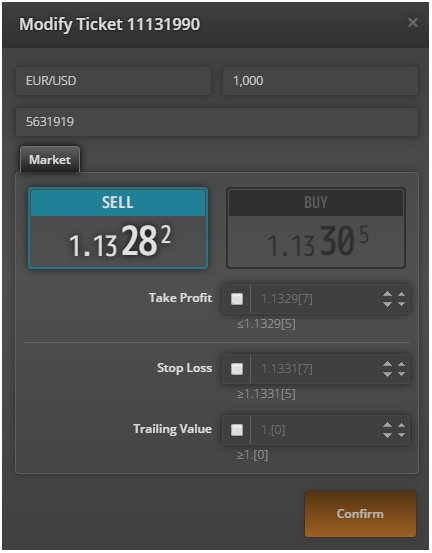
to close a trade right click the trade and click close ticket.
This will open the close ticket window
Once you click close the trade will be closed.
Recent Awards


Forex Traders Summit
2023Best Customer Service Broker

Dubai Forex Expo
2023Best FX Provider MENA

Forex Ratings
2023Most Transparent Broker - Europe
-
Dubai Forex Expo
2021Most Reputable Forex Broker 2021
أفضل الطرق الآمنة لإيداع الاموال


